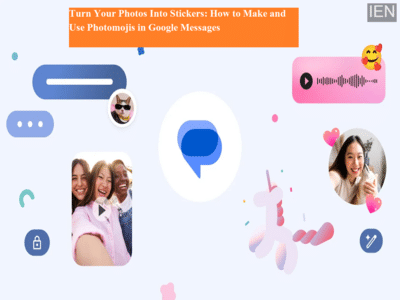
Google Messages continues to add fun and expressive features, and Photomoji is one of its most creative additions yet. This feature allows users to transform personal photos into custom stickers or message reactions, offering a more personal alternative to standard emojis. Whether it’s your pet’s funny expression, a friend’s smile, or a memorable moment, Photomoji helps bring real-life emotions directly into your chats.
Unlike traditional emojis that are universally shared, Photomojis are uniquely yours. They work seamlessly inside Google Messages and can be used across both RCS and SMS conversations, making everyday messaging more expressive and interactive.
What Is Photomoji and Why It’s DifferentPhotomoji lets you select an image from your phone’s gallery and convert it into a sticker-like visual that can be sent in chats or used as a reaction to a message. Since these are based on real photos, they often feel more personal and emotionally meaningful than generic emojis.
Once created, Photomojis are automatically saved in Google Messages. This means you don’t need to recreate them every time—you can reuse them whenever you want. This makes the feature ideal for inside jokes, frequent reactions, or adding personality to regular conversations.
Another advantage is flexibility. A Photomoji can be:
-
Sent as a sticker in the chat
-
Used as a reaction attached to a specific message
This dual-use capability gives users more creative freedom in how they communicate.
Device Requirements You Should KnowBefore getting started, make sure your device supports the feature.
-
Android version: Android 8.0 or higher
-
Not supported on: Android Go devices
If your phone meets these requirements and Google Messages is updated to the latest version, you’re good to go.
How to Create a Photomoji as a StickerCreating a Photomoji to send as a sticker is quick and simple. Follow these steps:
Open the Google Messages app
Open any conversation
Tap on the message box, then select Emoji
Tap Create
Choose a photo from your phone’s gallery
If the image has multiple subjects, tap on the person or object you want to use
Tap Send
Your custom Photomoji will appear in the chat and will also be saved for future use.
How to Use a Photomoji as a Message ReactionYou can also use Photomojis as reactions, similar to emoji reactions. Here’s how:
Open Google Messages
Open a conversation
Tap and hold on the message you want to react to
Tap Create
Select a photo from your gallery
Choose the subject if multiple people or objects appear
Tap Send
The Photomoji will now appear as a reaction linked to that specific message.
Why Photomoji Makes Messaging More FunPhotomoji adds personality, warmth, and creativity to conversations. A familiar face or a funny picture can instantly make chats feel more engaging. Since these visual reactions are based on real moments, they often carry more emotional impact than standard emojis.
The convenience factor also plays a big role. Because Photomojis are saved automatically, users can quickly reuse them without repeating the process. This is especially useful for people who chat frequently or like to react visually rather than typing responses.
Final ThoughtsWith Photomoji, Google Messages blends personalization with simplicity. It’s a playful yet practical feature that enhances everyday communication without adding complexity. If you enjoy expressing yourself visually, Photomoji is an easy way to make your chats more memorable.