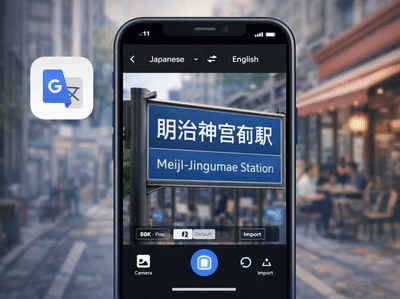
Struggling to understand foreign text on a signboard, restaurant menu, or printed document? With Google Translate, you can quickly scan and translate text directly from images using your smartphone or computer.
This powerful feature is especially useful for travellers, students, professionals, and anyone dealing with multilingual content. Instead of typing long passages manually, you can simply point your camera at the text and get an instant translation.
Here’s a complete guide on how to use Google Translate’s image translation tool efficiently.
What Is Google Translate’s Image Translation Feature?Google Translate includes a built-in camera tool that detects and translates text found in images. The app uses optical character recognition (OCR) technology to identify printed words and convert them into your chosen language.
This feature works in real time, meaning you can translate text instantly by pointing your phone’s camera at it. It can also translate text from saved photos in your gallery.
Whether you are navigating through a foreign country or reviewing international documents, the tool helps break down language barriers quickly.
How to Translate Text from an ImageFollow these simple steps to translate text using the Google Translate app:
Step 1: Open the App or WebsiteLaunch the Google Translate app on your smartphone. If you are using a computer, visit the official Google Translate website in your browser.
Step 2: Choose Your LanguagesSelect the source language (the language in the image) and the target language (the language you want the translation in).
In the mobile app, tap the camera symbol to activate the image translation feature.
Step 4: Point the Camera at the TextHold your phone steady and aim the camera at the text you want to translate. Ensure the words are clearly visible and well-lit.
Step 5: View Instant TranslationThe app will automatically detect the text and display the translated version on your screen.
Step 6: Select Specific Text (Optional)If you only want to translate a portion of the text, tap and drag your finger across the desired area. The app will translate just the selected section.
Step 7: Read the ResultThe translated text will appear over the image or in a separate panel above it, depending on your device and app version.
Tips for Accurate Image TranslationTo get the best results from Google Translate’s image tool, keep these helpful tips in mind:
- Ensure the image is clear and well-lit.
- Avoid blurry or tilted photos.
- Use a high-resolution camera if possible.
- Crop the image to focus only on the relevant text.
- Zoom in if the text appears small.
- Double-check language selection if the translation seems incorrect.
If the app struggles to identify the language automatically, manually select the correct source language for improved accuracy.
When Is This Feature Most Useful?Google Translate’s image translation tool is ideal in many real-world situations, such as:
- Reading foreign restaurant menus
- Understanding road signs while travelling
- Translating product labels in stores
- Converting printed documents into your native language
- Studying foreign textbooks or study materials
It saves time and reduces the need for manual typing, making it convenient for users on the go.
Does It Work Offline?Google Translate allows users to download language packs for offline use. However, some camera translation features may work better with an active internet connection, as real-time processing can require cloud support.
If you plan to travel abroad, downloading the necessary language pack beforehand can be helpful.
Google Translate’s image translation feature makes interpreting foreign text easier than ever. With just a few taps, you can instantly convert text from images into a language you understand.
Whether you are travelling, studying, or working with multilingual content, this tool offers a fast and practical solution. Make sure your app is updated, follow the steps carefully, and use the tips above to achieve the most accurate results.