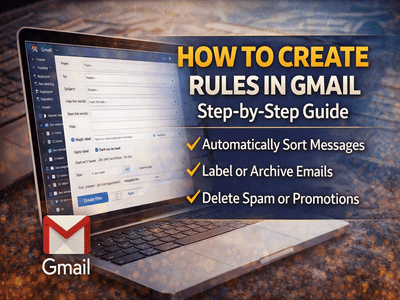
Managing a crowded email inbox can be challenging, especially when important messages are buried under promotional emails, newsletters, and automated notifications. Fortunately, Gmail provides a powerful feature called filters (or rules) that helps users organise incoming messages automatically.
By creating Gmail rules, users can instruct Gmail to sort emails into folders, apply labels, archive messages, mark them as read, or even delete them automatically. This feature saves time and ensures that important emails remain visible while less important messages are handled automatically.
In this guide, we explain how to create Gmail rules using the search bar, a specific email, or your smartphone browser, so you can keep your inbox organised and efficient.
What Are Gmail Rules or Filters?Gmail rules—commonly called filters—allow users to define conditions for incoming emails and automatically apply specific actions.
For example, you can create filters that:
- Move emails from a specific sender to a label or folder
- Skip the inbox for newsletters or promotional emails
- Automatically mark certain emails as read
- Delete spam messages from particular addresses
- Organise work-related emails into dedicated categories
Once configured, Gmail automatically performs these actions for every matching email, keeping your inbox clean and manageable.
Method 1: Create Gmail Rules Using the Search BarOne of the easiest ways to set up Gmail filters is through the search options menu available in the Gmail interface.
Steps to Create a Rule- Sender email address in From
- Recipient in To
- Keywords in Has the words
- Subject line keywords
- Apply a label
- Archive the email
- Mark it as read
- Delete it automatically
Once the rule is enabled, Gmail will automatically perform the selected action on all future emails that match the filter conditions.
Method 2: Create Gmail Rules from a Specific EmailYou can also generate filters directly from a particular email message. This method is useful when you want to organise emails from a specific sender.
Steps to Create a Rule from an EmailThis method allows you to quickly automate email management for specific contacts or mailing lists.
Method 3: Create Gmail Rules on Your SmartphoneAlthough the Gmail mobile app does not offer advanced rule creation, you can still create filters using your phone’s browser.
Steps to Create Gmail Rules on Mobile- Skip inbox (archive)
- Apply label
- Mark as read
- Delete the message
The rule will now apply to all incoming emails that meet the specified conditions.
Can Gmail Rules Be Edited or Deleted?Yes, Gmail allows users to manage filters easily.
To modify or remove existing rules:
Yes. Gmail filters are linked to your Google account, not a specific device. Once created, they automatically apply to incoming emails across desktop, smartphone, and tablet devices.
This means your email organisation rules will work regardless of where you access Gmail.