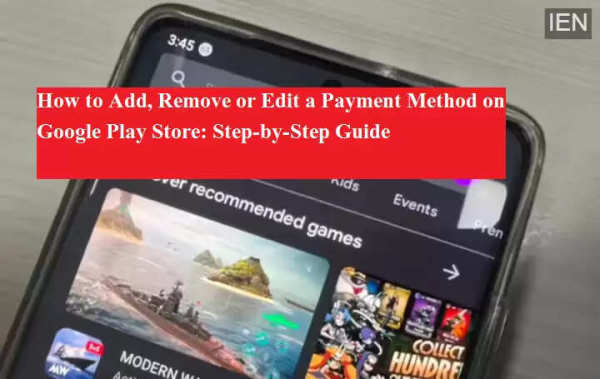
Google Play Store is the primary destination for Android users to download apps, games, movies, books, and subscriptions. While many apps are available for free, paid apps and in-app purchases require a valid payment method linked to your Google account. To make transactions smooth and secure, Google Play allows users to add, edit, remove, and even set backup payment methods.
If you are unsure how to manage payment options on Google Play Store, this detailed guide explains everything in simple steps.
Supported Payment Methods on Google Play Store
Google Play Store supports multiple payment options to provide flexibility to users. These include:
Debit cards and credit cards
UPI-based payments
Net banking (supported banks)
Google Pay-linked accounts
Users can add more than one payment method and choose a preferred option during checkout.
How to Add a Payment Method on Google Play Store
Adding a payment method ensures uninterrupted access to paid apps and subscriptions. Follow these steps:
Open the Google Play Store app on your Android device.
Tap on your profile icon located at the top-right corner.
Select Payments & subscriptions from the menu.
Tap on Payment methods.
Choose Add a payment method.
Select your preferred option such as card, UPI, or net banking.
Enter the required details carefully and tap Save.
If you are adding Google Pay as a payment method, ensure that your UPI ID is active and verified.
How to Add a Backup Payment Method for Subscriptions
Google Play Store allows users to add a backup payment method for subscriptions. This is helpful if the primary payment method fails due to insufficient balance or technical issues.
Steps to add a backup payment method:
Go to Payments & subscriptions in the Play Store.
Select the active subscription.
Tap on Backup payment method.
Choose Set up and add the payment details.
The backup method will be charged automatically only if the primary method fails. You can remove it anytime.
How to Remove a Payment Method from Google Play Store
If you no longer want to use a particular payment option, you can remove it easily.
Steps to remove a payment method:
Open Payments & subscriptions in Google Play Store.
Tap on Payment methods.
Select More or Payment settings.
Sign in again if prompted.
Choose the payment method you want to remove.
Tap Remove and confirm.
Note: A payment method linked to an active subscription cannot be removed unless the subscription is canceled or another payment method is added.
How to Edit a Payment Method
You can update card details or billing information anytime.
Steps to edit a payment method:
Go to Payments & subscriptions.
Tap Payment methods and select More.
Choose Payment settings.
Tap Edit under the payment method.
Make the necessary changes.
Tap Update to save.
Important Tips for Secure Payments
Always keep your Google Play app updated
Avoid using public Wi-Fi while making payments
Enable app lock and transaction alerts
Review subscriptions regularly
Conclusion
Managing payment methods on Google Play Store is simple and user-friendly. Whether you want to add a new payment option, set up a backup method, or remove outdated details, following the correct steps ensures secure and uninterrupted access to paid services. Staying updated with payment settings helps avoid failed transactions and subscription interruptions.