How to Enable DLSS 4.5 on NVIDIA RTX GPUs: A Step-by-Step Guide
DLSS has come a long way from being a "nice-to-have" toggle to something that genuinely defines how some modern PC games run.
At CES 2026, NVIDIA talked all about DLSS 4.5, and it has now rolled out the app update, available to all GeForce RTX users across more than 400 supported games.
As of writing, it's still in beta, so if you are wondering how to enable it and choose the correct presets, this article will help you.
What's New with DLSS 4.5
The headline addition is a 2nd-gen Transformer model for Super Resolution, which aims to improve image quality, better temporal stability and lower artefacts. This updated model is now available through the NVIDIA App and can be enabled across hundreds of supported titles via DLSS model overrides.
Alongside Super Resolution, Nvidia has also announced Multi Frame Generation (MFG) 6x, which will expand frame generation capabilities further by generating up to six frames per rendered frame. This feature is not available yet and is expected to roll out in Spring and is available only for the RTX 50 series cards
Step 1: Opt in to access Beta on the NVIDIA App
As of writing, accessing DLSS 4.5 features requires opting into the beta version of the NVIDIA App. To do this, open the app, go to Settings > About, and enable access to beta or experimental features. Once enabled, update the app if prompted and restart it for the changes to take effect
Step 2: Update the NVIDIA App and Drivers
Start by updating the NVIDIA App to the latest version (11.0.6.379). DLSS 4.5 support is baked directly into the new app builds, so older versions won't show you the correct options.
Once updated, head to the Drivers tab and install the latest GeForce Game Ready driver (591.74). DLSS model overrides won't function correctly without it.
Step 3: Enable DLSS 4.5 Using Model Presets
Open the NVIDIA App and head to the Graphics tab. This is where DLSS 4.5 is enabled globally or on a per-game basis. Now, head to Global Settings.
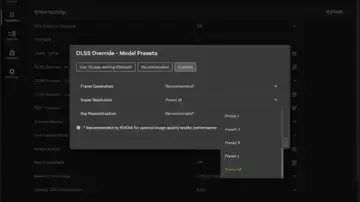
Look for "DLSS Override - Model Presets" and select "Recommended." You can keep it at Recommended or choose from the presets below.
Here are what the presets do:
- Preset M is applied to DLSS Super Resolution Performance mode
- Preset L is applied to 4K DLSS Super Resolution Ultra Performance mode
If you're using an RTX 20 or RTX 30 series GPU, Models M and L can have a noticeable performance impact, as these cards lack native FP8 support. In this case, it's better to switch to Preset K (DLSS 4.0), which offers a more balanced mix of performance and image quality without introducing unnecessary instability.
To confirm which DLSS model is active, enable the NVIDIA app's overlay by pressing Alt + Z, then navigate to Statistics > Statistics View > DLSS.
Read more